Texas Water Utilities

Select Your State

Pay Your Bill Online

Sign In

  • Utilities by State
    • Alabama
    • California
    • Florida
    • Louisiana
    • Oregon
    • South Carolina
    • Texas

My Account

My Account

Forgot username or password

Need a profile? Sign Up

  • Customer Care
    • Contact Us
    • Payment Options
    • Need help paying your bill?
    • Start or Stop Service
    • Q & A
      • Welcome Packet
      • Water Alert Signup
      • Texas Neighborhood Dashboard
      • Customer FAQ
      • Notices Explained
      • How to Read Your Bill
      • How to Read Your Meter
      • Service Areas
    • Applications and Forms
    • Our Mission And Values
  • Water Quality
    • Water Quality Reports
    • Drought Restrictions
    • Lead and Copper Information
    • Lead and Copper Survey
    • System Improvement Projects
  • New Development
    • Developer Contact
    • New Taps
  • Rates and Tariff
  • News
  • H2ome
  • Contact Us
  • Careers

In-Person Payment Instructions

You are here: Home / Texas / In-Person Payment Instructions
stock

Within My Account, the “Cash” option allows you to pay in person at these locations: 7/11, ACE Cash Express, CVS, Family Dollar, Food Lion, Giant Eagle, Kroger, Love’s, Meijer, Speedway, Walgreens, Winn Dixie. To pay at these locations, a payment barcode is needed. 

Here’s how to make a payment at any of the locations mentioned above: 

Print this webpage if you would like these instructions for reference. 

Step 1: Log into or Create a My Account  

Visit the website here: account.mywater.us and log in. 

WATCH: How to sign up for My Account 

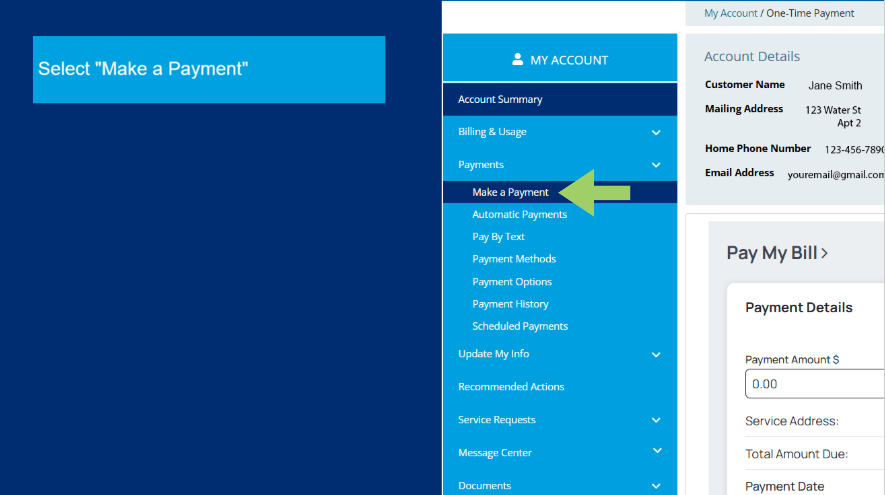
Step 2: Within My Account, under “payments,” click on “Make A Payment.”   
Screenshot

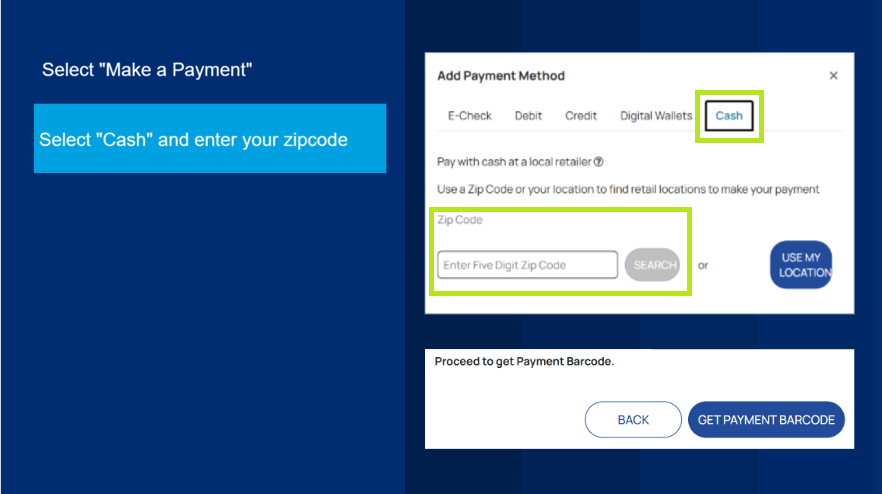
Step 3:  Then select the “cash” payment option, enter the amount to pay, and choose a retail location from the provided list to make the payment.
Screenshot

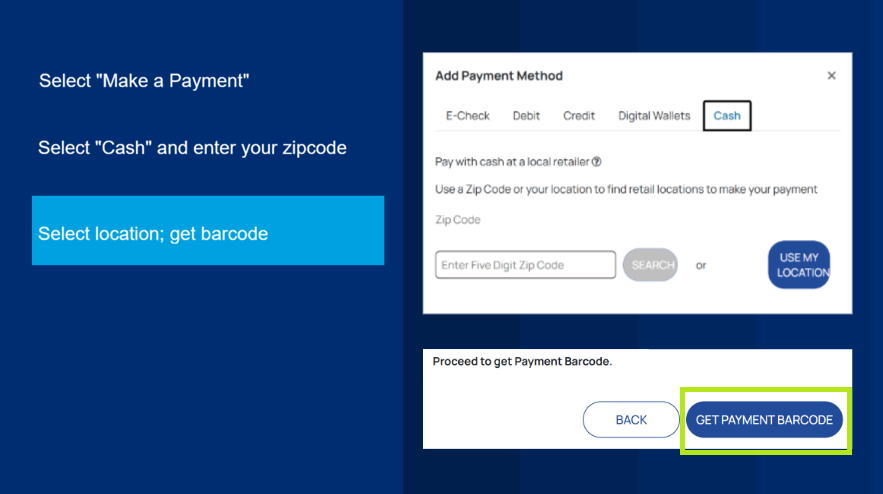
Step 4: Once selected, the portal will provide you with a payment barcode. You must present the barcode to the retail location previously selected to make your payment. 
Screenshot

Payment Barcode Important Information 

When following the prompts with the “Cash” payment option, you will be asked how much you would like to pay in person and where you would like to complete the payment. The payment barcode will then generate the amount and location you have selected. You must bring and present the payment barcode to continue with the payment option. The payment barcode is valid only for the selected store, and the amount stated must be paid in full. The payment barcode will not work at another store.  

Additionally, the payment barcode is valid for only 24 hours. Once expired, you will need to generate a new payment barcode.
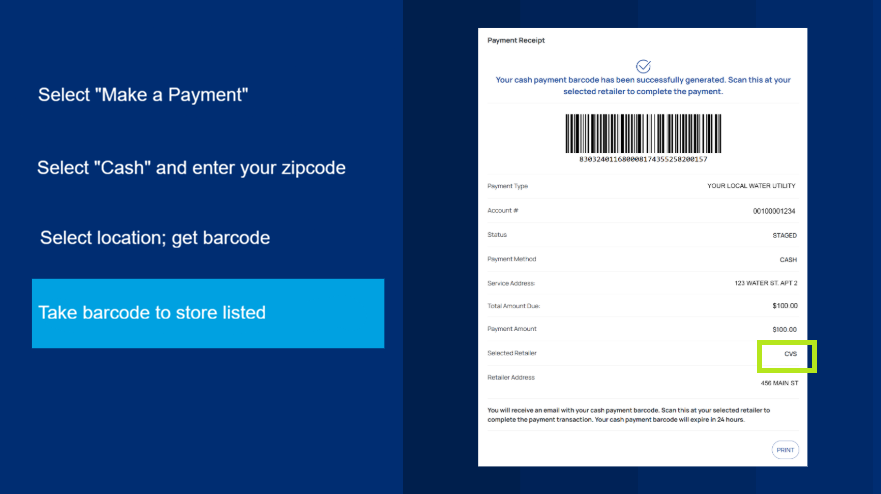
Screenshot

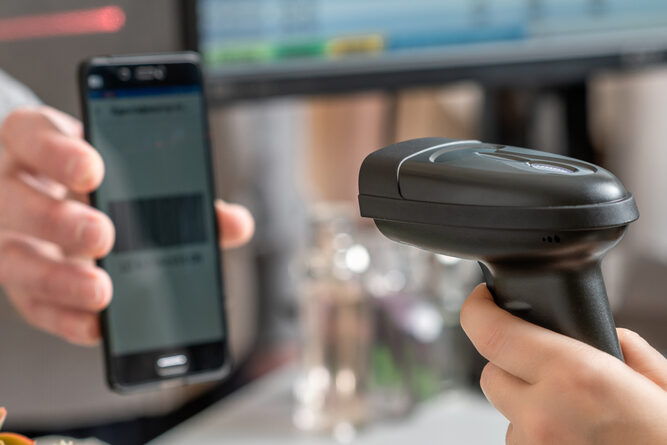
Step 5: Once at the retailer, present the barcode to the cashier, who will scan it, and then you can complete your payment. Remember, you will only be able to pay the previous amount indicated on the payment barcode. The preset amount is listed on the barcode. 
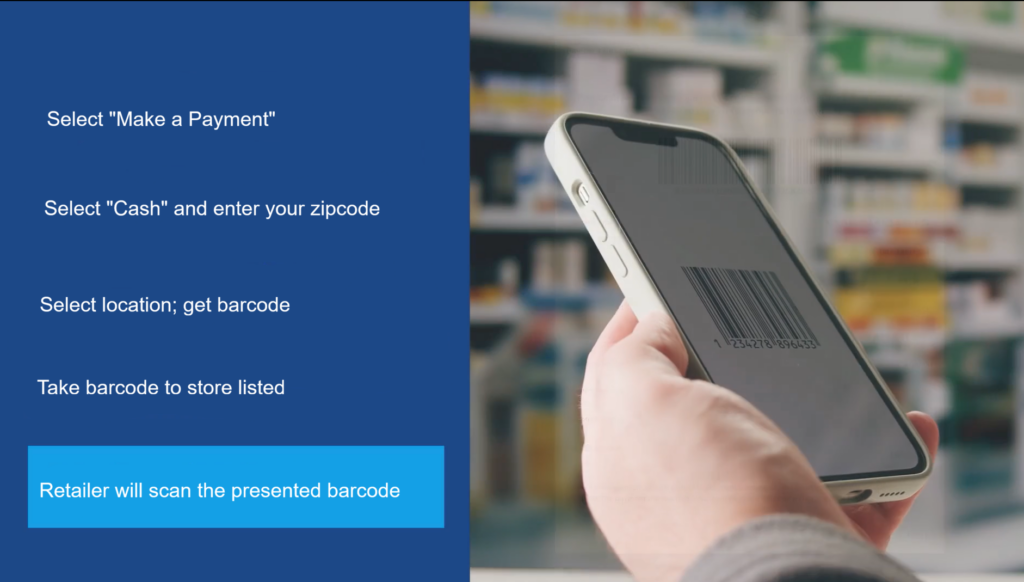
Screenshot

Customer Service

Email TXCustomerCare@nexuswg.com

Fax 832-209-5395

Hours of Operation: Monday to Friday 8 a.m. to 4:30 p.m. CT.

Texas News

Untitled design ( )

Stay Safe: Winter Storm Warning

EmmaEmailBanners

Texas Water Utilities Investing $80 M in Local Infrastructure in 2025

South Carolina Water Utilities announces consolidation of Lowcountry water and wastewater systems

Texas Water Utilities Q4 2025 rate changes Q&A

My Account News Banner

Sign Up Today for a ‘My Account’ Customer Portal Profile

Tommy Posey (CONSENT), Jesse Donelson (VERBAL CONSENT), Angela Hicks (CONSENT) No Border

Texas Water Utilities Shines at AWWA Texas Top Ops, Wins Regional Title

DWW

It’s Drinking Water Week

More Texas News

Footer1Text

  • Privacy Policy
  • Terms Of Use
  • Contact

Texas Social

Facebook Facebook Facebook
Copyright © 2026 All Rights Reserved